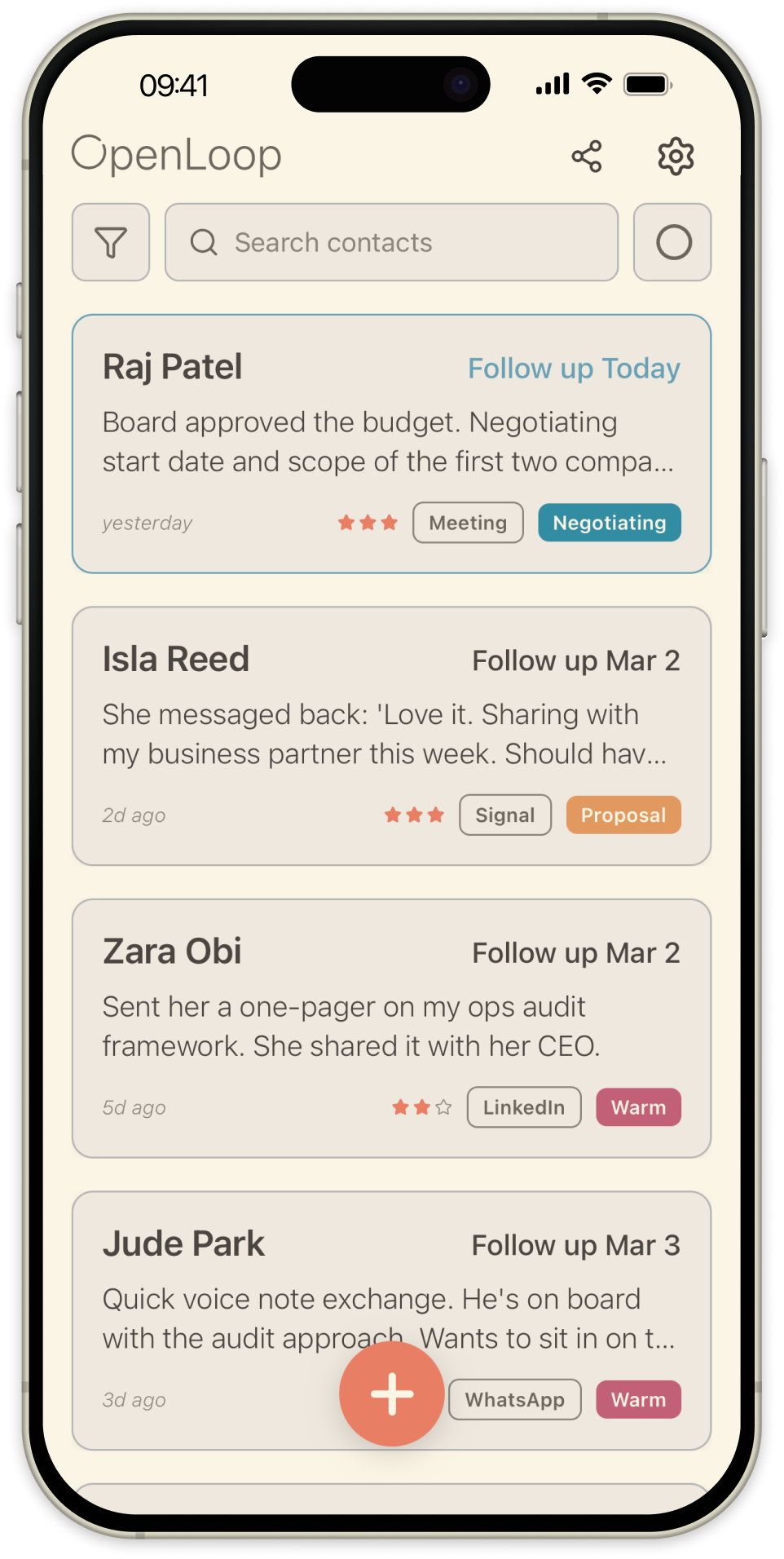
OpenLoop is a personal CRM and follow-up tracker. The core loop is simple: add a contact, log what happened, and set a follow-up. Reminders and a home screen widget keep you on top of who needs attention next, and a network graph shows how your contacts connect. This guide walks through every screen.
The home screen
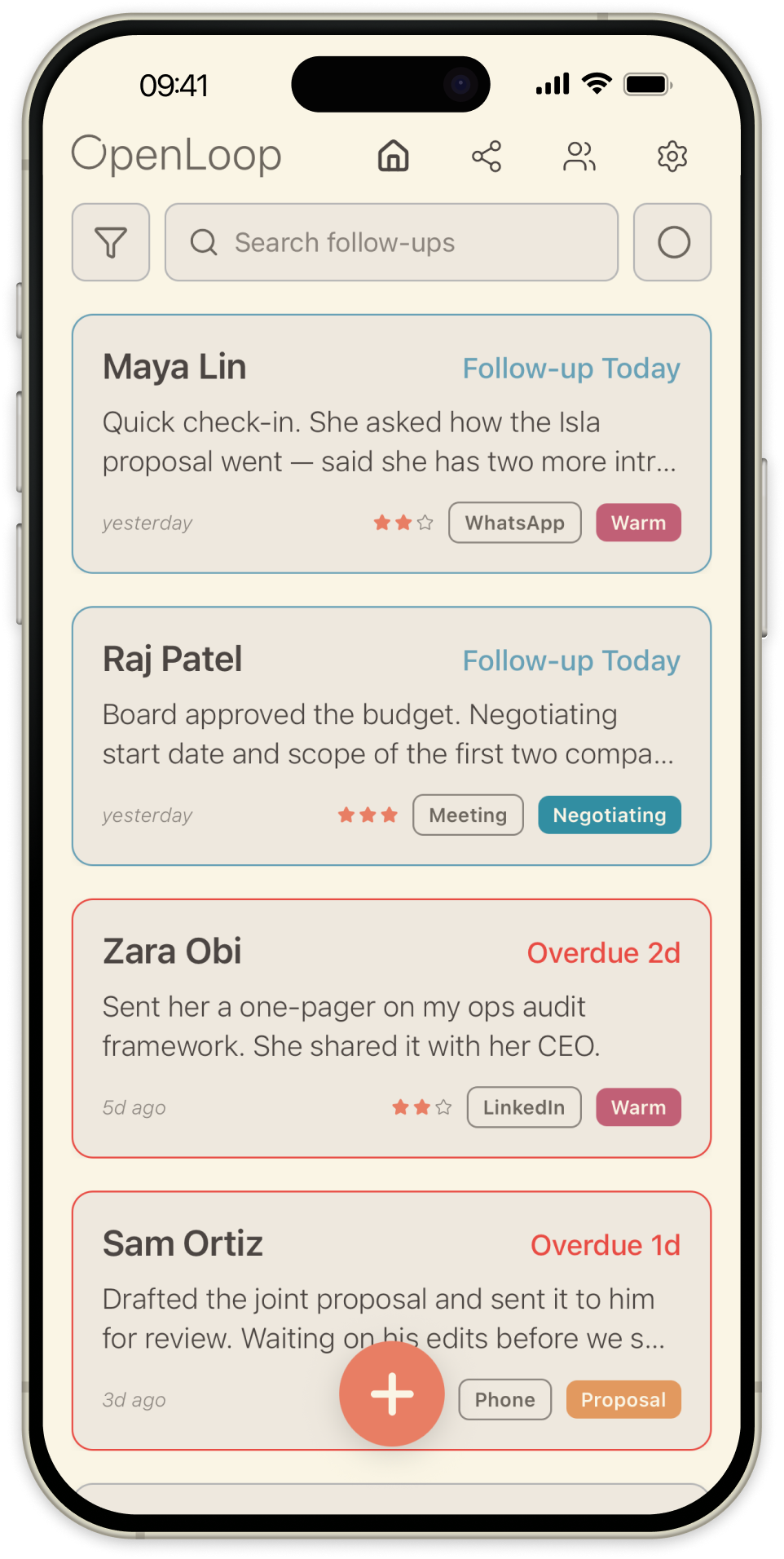
Your contacts appear on the home screen sorted by follow-up date. Each card shows the contact's name, latest update, follow-up status, stage, platform, and urgency. Cards are colour-coded: blue for follow-ups due today, red for overdue.
Navigation. Tap the graph icon to switch between your contact list and the network graph. Tap the gear icon to open Settings. Tap the + button to create a new contact. Tap any card to open that contact's detail screen.
Swipe actions. Swipe a card right to reveal Edit, Archive, and Delete. Swipe left to reveal Call and Message, which open your phone's dialler or messaging app with the contact's details pre-filled.
Filters. Tap the filter icon to narrow your list by stage, communication platform, or urgency. Combine filters to focus on exactly the contacts you need.
Adding a contact
Tap the + button on the home screen to add a new contact. Enter a name, write some context about them, and set a follow-up date. This becomes the contact's first timeline entry.
Once created, open their detail screen to add more: company, role, communication platform, custom fields, and connections to other contacts.
Logging updates and follow-ups
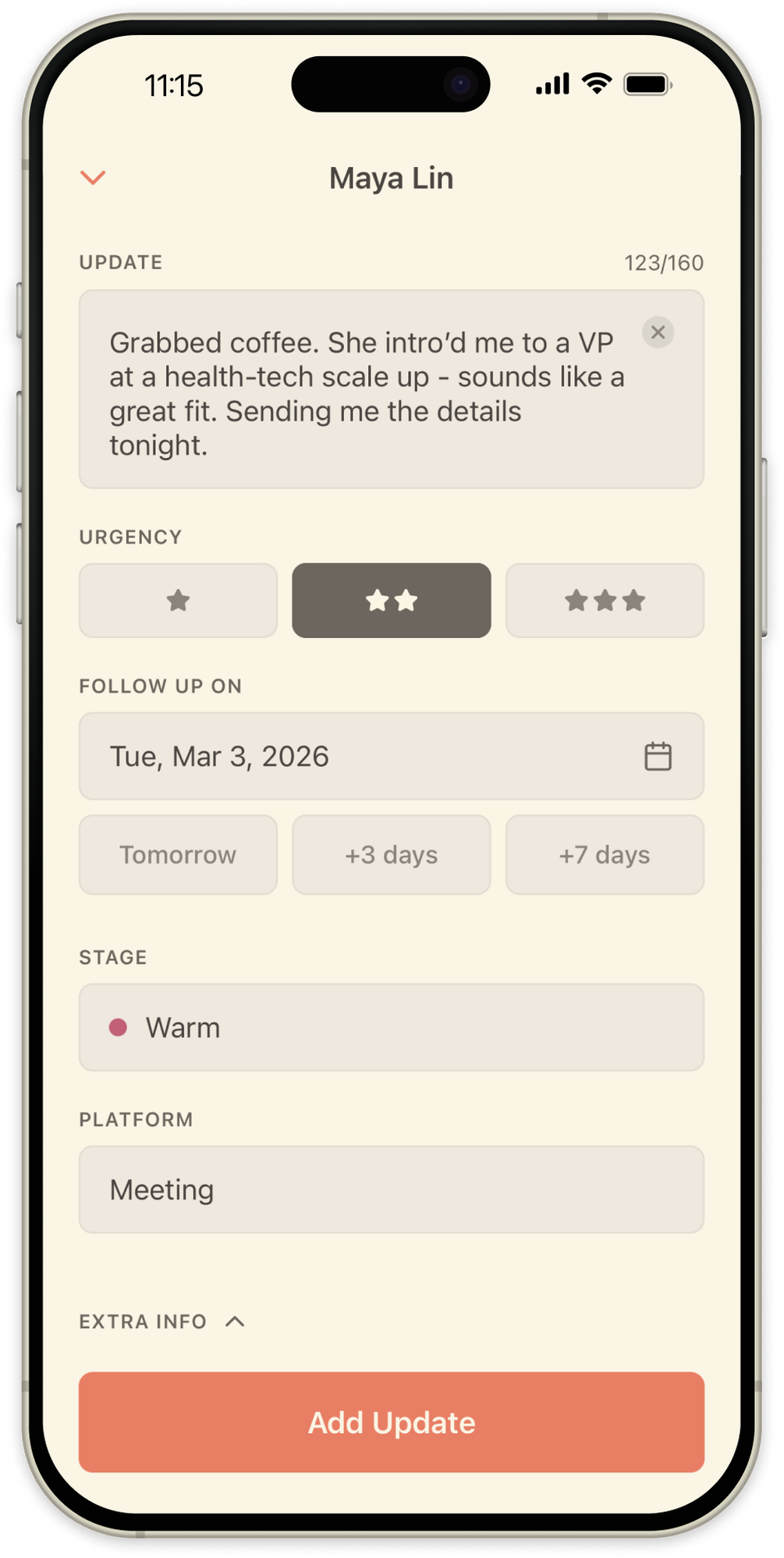
Open a contact and tap the + button to log an interaction. The update screen captures everything about it: write your notes, set a follow-up date, change the stage, pick the platform, and rate urgency. Tap Extra Info to add more context.
Use your keyboard's built-in dictation to keep notes quick, which is handy right after a call. To edit a past update, swipe left on it in the timeline.
The contact timeline and details
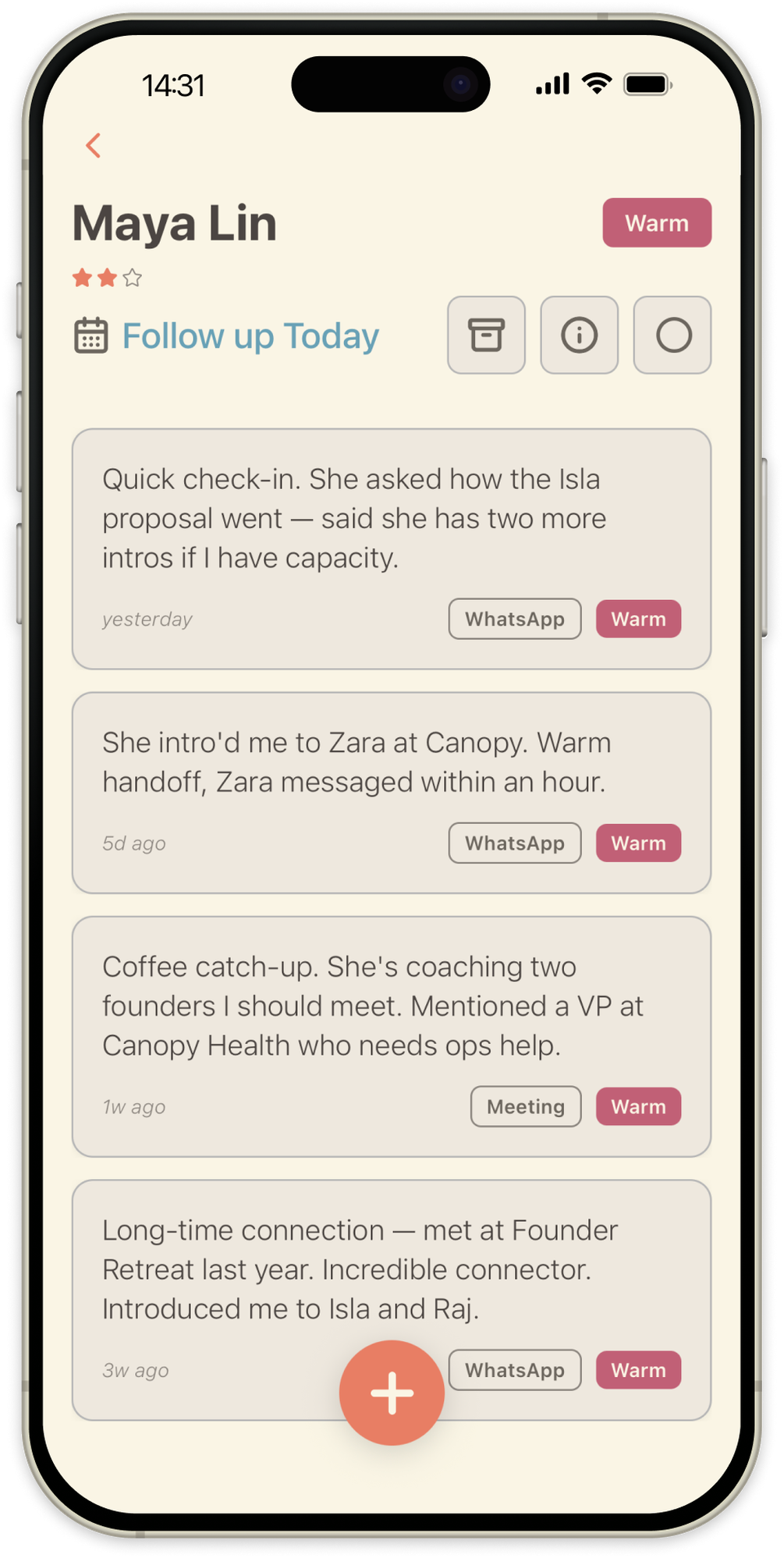
Timeline. A chronological feed of every interaction you've logged with a contact. Each entry shows the date, notes, platform, and urgency. Stage changes appear as inline markers between entries.
Info and connections. Tap the i button to view contact details (company, role, platform, and any pinned custom fields) along with the contact's connections to other people in your network.
Edit mode and pinned fields. Tap Edit to update any field. While editing, tap the pin icon next to a field to pin it to the info panel, so details you check often, like company or role, stay visible without opening edit mode.
Connections. Choose a relationship type (colleague, introduced by, mentor, and so on) and select contacts. Connections are bidirectional: adding someone as a colleague makes you their colleague too.
The network graph
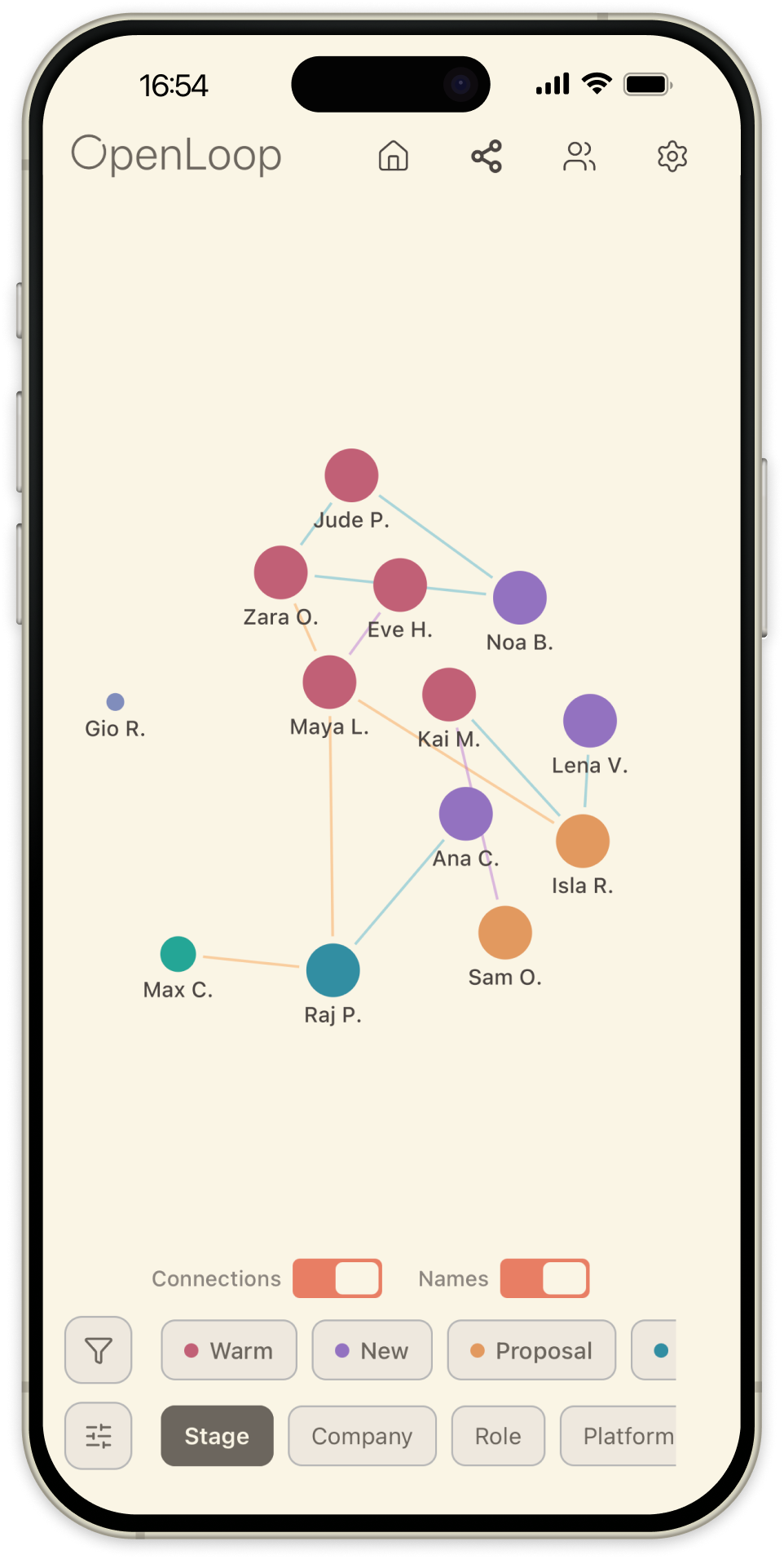
The graph view visualises how your contacts relate to each other. Navigate deeper by double-tapping at every level.
Overview. Your contacts clustered into groups. Use the colour wheel to switch how they're grouped: by stage, company, role, platform, or any custom field you've enabled in Settings. Double-tap a group to open it.
Group and network views. Inside a group, see individual contacts and their connections. Double-tap any contact to open their personal network view, where connection lines are colour-coded by category (professional, personal, family, introduction).
The home screen widget
OpenLoop includes a home screen widget that shows today's follow-ups without opening the app. Add it like any iOS widget: press and hold an empty area of your home screen, tap the + in the top corner, search for OpenLoop, choose a size, and place it. It updates automatically as follow-ups come due.
Calendar sync
You can push follow-ups to your calendar so they sit alongside your meetings and deadlines. Enable calendar sync in Settings, and the follow-ups you choose will appear as events in your calendar app, whether that's iCloud, Google Calendar, or another provider.
Customisation
Status labels. Rename your follow-up stages to match your workflow. The order and colours stay the same, only the labels change.
Custom fields. Add extra fields that appear on every contact. Choose from four types: Text, Toggle (yes/no), Date, and Month & Day (for recurring dates like birthdays). Create up to 10 and reorder them.
Graph categories. Choose which fields can colour-code your network graph. Built-in categories (stage, company, role, platform) are always available; toggle custom fields on to group by them too.
Notifications. Set a daily reminder time. When enabled, you'll be notified about contacts due for a follow-up that day.
Tips for getting the most out of OpenLoop
- Review by stage. Use stage filters to focus on one group at a time so nobody slips through the cracks.
- Capture context while it's fresh. Even a sentence about your last conversation makes the next follow-up feel personal and easy to start.
- Pick a realistic follow-up date. Set reminders for when you'll actually have time to reach out, not just when you feel you should.
- Use dictation. Tap the microphone on your keyboard in any text field to capture notes quickly.